Teleport

Teleport

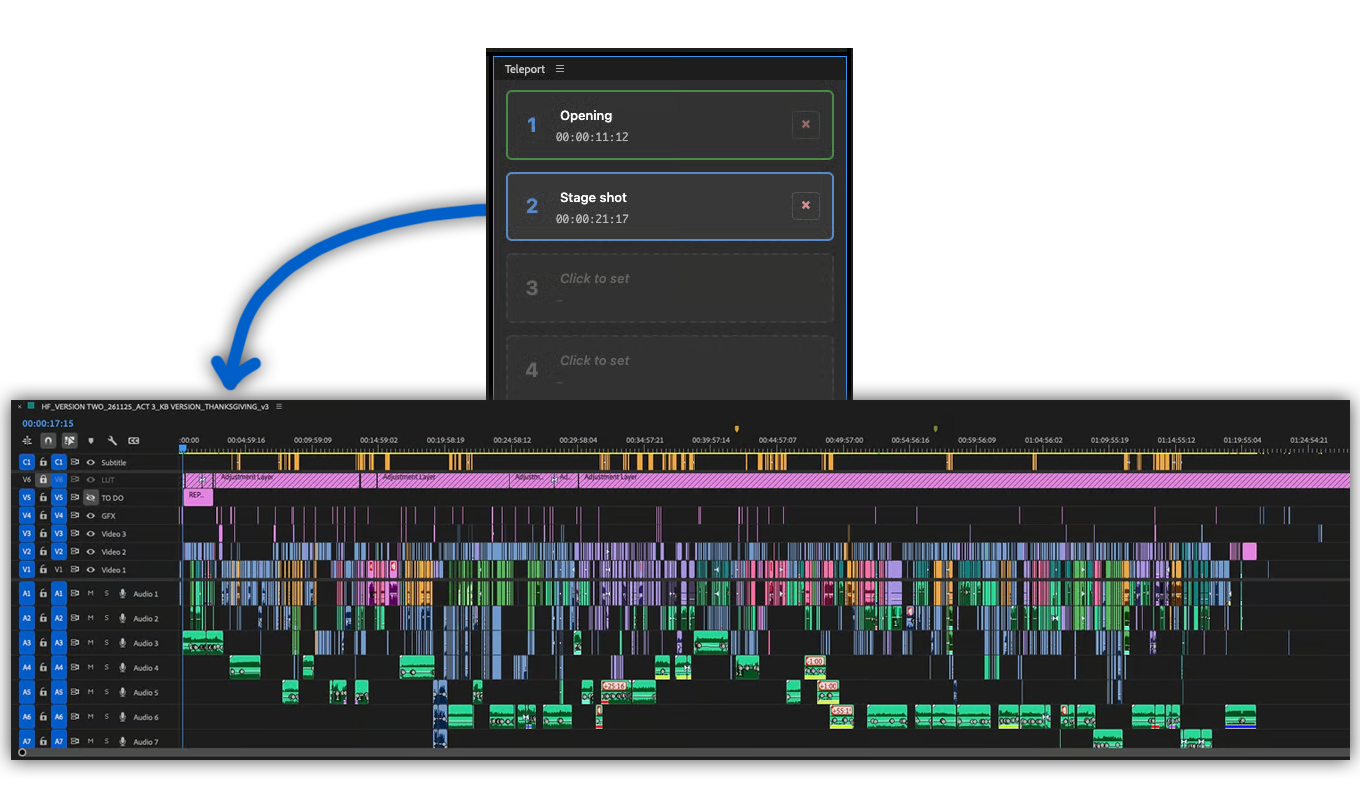
If you've ever worked with a director who wants to quickly grab a shot from scene two and move it to scene twelve, then you know what to do. You have to zoom out, scroll across a lot of clips to find the shot, move it, and then...where was I again? The Teleport plugin for Premiere Pro solves this issue.
Značilnosti

  • Quickly jump around in your sequence.
  • Store up to five different locations
  • Reset the stored anchors easily
  • Supports clips and sequence anchors
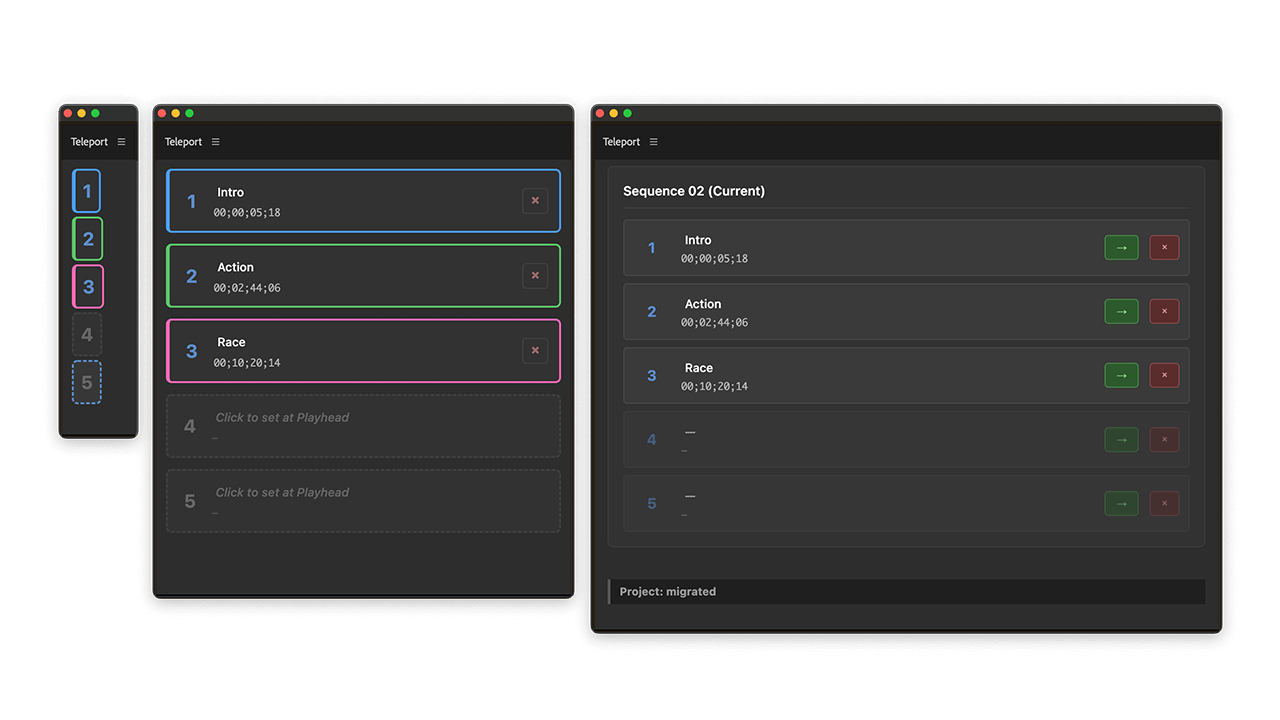
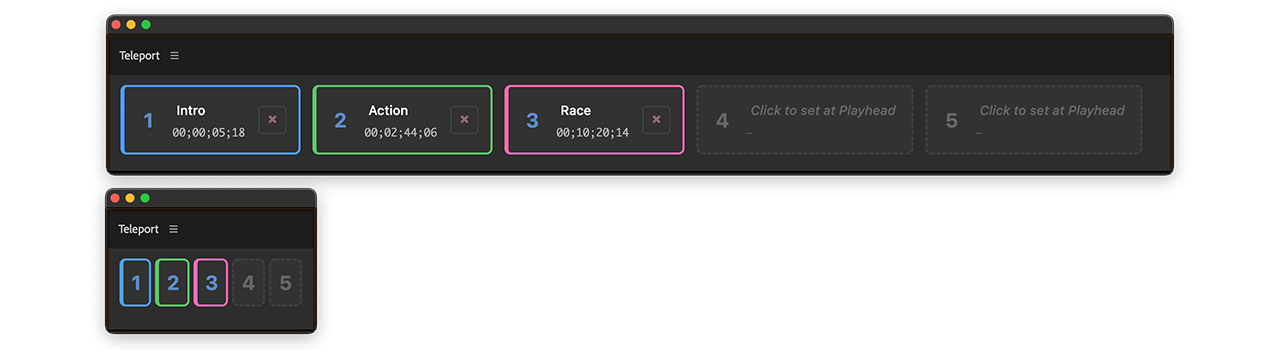
  • Five different panel view options
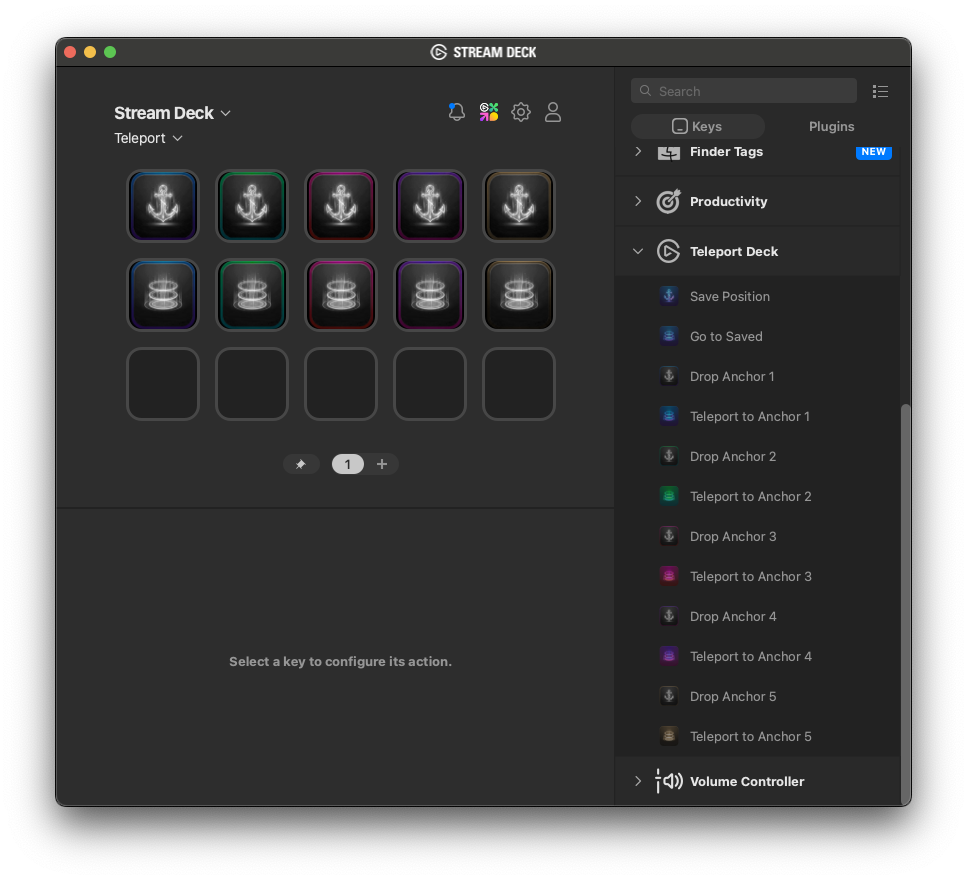
  • Elgato Stream Deck support

za Adobe Premiere CC 2022+
Za Windows in MacOS.

No more searching!

Teleport lets you drop a digital anchor anywhere in your timeline, allowing you to instantly jump back to that exact frame. No more searching for colored markers or memorizing timecodes!

How it works:

  1. Click to record your playhead’s current timecode.
  2. Give it a label such as "Scene 4 Bridge" or "Interview Alt".
  3. Navigate to another part of your project or timeline.
  4. Click the button to instantly return to your original spot.

Make the plugin panel tiny!

You can choose in between five different panel modes:

  1. Vertical
  2. Horizontal
  3. Tiny Vertical
  4. Tiny Horizontal
  5. All Timelines

Works across multiple sequences

The "All timelines" view allows you to see all the anchors across your different project sequences, and enables you to easily jump to a position in other sequences.

Use Teleport with Stream Deck

Download and install the Teleport Stream Deck add-on by opening the file with Stream Deck. Then, drag and drop the Anchor and Teleport buttons into your desired positions in the layout. You are now ready to start using the plugin.

Izberite licenco

We offer three types of licenses. The single-user license is ideal for freelancers who want to use the software on one or two computers. This license is tied to a single account. For companies, we offer a team license, which is bound to the company. The number of licenses can be chosen upon purchase, with a minimum of three licenses. We also offer an enterprise option. Please contact our sales team for more information. All licenses are perpetual.

Priporočamo, da se pred nakupom prijavite, saj boste tako imeli preprost dostop do prihodnjih posodobitev vtičnika.
Licenca za enega uporabnika
loading...
Team License (3+ users)
loading...
Licence za enega uporabnika lahko kupite tudi v trgovini Adobe Exchange Store.
Za licenco Enterprise se obrnite na našo prodajno ekipo.

Opomba: Vtičnik je trenutno na voljo samo v angleščini.

Preusmerjeni boste na varno blagajno »Paddle«. Paddle.com je Merchant of Record.

Obrnjena davčna obveznost: Če kupujete za podjetje in imate identifikacijsko številko za DDV, lahko v nekaterih državah uporabite postopek obrnjene davčne obveznosti. Na strani za plačilo po izbiri države in poštne številke na levi kliknite "Add VAT ID".

Poslovnih ekipnih licenc ni mogoče kupiti v trgovini Adobe Exchange Store.

Podpora

Če imate vprašanja ali zahteve za funkcije, se obrnite na našo ekipo za podporo. Z veseljem vam bomo pomagali!

POGOSTA VPRAŠANJA

To install the plugin, use an ZXP Installer like ZXP Installer from AE Scripts or Anastasiy Extension Manager. These installers are free.

If you already have the plugin installed and want to install a new version of the plugin, you can simply run the new installer. It is not necessary to uninstall the old version, the new one will overwrite everything.

You can activate the plugin panel in Premiere Pro menu under "Window > Extensions > Teleport".

Download and install the Stream Deck add-on to your Stream Deck application. Then, drag and drop the Anchor and Teleport buttons into their desired positions in the layout. If set up correctly, it should work instantly with the Premiere Pro panel.

If no clip is selected in the Timeline when you drop an anchor, Teleport will record the current timecode at the playhead's position.This will teleport you back to the same sequence timecode location each time.

If a clip is selected, the source timecode and clip name will be stored in the anchor. You will then be teleported back to that position within the clip, no matter where it has been moved in the timeline. If the clip has been deleted, Teleport will issue a warning. If the clip has been trimmed to remove the anchor timecode from the sequence, Teleport will take you to the first frame of the clip.

All anchors are sequence-specific, even if you rename the sequence because Teleport uses Premiere's internal ID system.

Yes. It also works on air-gapped systems.

Ne, vaši podatki ostanejo v vašem računalniku.

Da. Vtičnik je zasnovan za vse vrste projektov, vključno s strogo zaupnimi produkcijami s podpisanimi pogodbami NDA. Podatkov ne deli z nobeno napravo razen z vašo.

Zaprite in znova odprite ploščo. S tem se vtičnik znova naloži, kar bi moralo odpraviti težavo. Če to ne pomaga, poskusite znova zagnati Premiere ali znova namestiti najnovejšo posodobitev vtičnika.

Preizkusili smo ga v programih Premiere 2021, 2022 in 2023. Morda bodo delovale tudi starejše različice, vendar tega trenutno ne moremo zagotoviti. Če uporabljate starejšo različico programa Premiere, nam sporočite, kakšne so vaše izkušnje.

Vtičnik je bil napisan za Windows 10 in MacOS 12 (Montery). To za zdaj ne izključuje drugih različic, vendar ne moremo izključiti težav pri preizkusu pri uporabi s starejšimi različicami. Če uporabljate starejši operacijski sistem, nam sporočite, kakšne so vaše izkušnje.

Če ste vtičnik kupili brez ustvarjanja računa, lahko posodobitev prenesete ali vtičnik znova prenesete na dva načina. Najhitreje je, da ustvarite brezplačen račun z e-poštnim naslovom, povezanim z nakupom. Kupljena licenca se bo samodejno povezala z vašim računom. Ko se prijavite, najdete vtičnik pod Nakupi in ga lahko znova prenesete. Če vtičnika ne vidite, kliknite "Znova poveži nakupe". Upoštevajte, da je vtičnik mogoče samodejno znova povezati le, če uporabljate isti e-poštni naslov. Druga možnost je, da se obrnete na našo ekipo za podporo in zaprosite za novo povezavo za prenos. Ta postopek lahko traja nekaj časa.

Če potrebujete novo funkcijo, možnost ali prilagojeno različico vtičnika, nam pošljite sporočilo. Za podjetja ponujamo rešitve po meri.

On Windows the extension can be easily uninstalled under "Add/Remove Programs".

On MacOS the extension can be easily uninstalled by deleting the folder "/Library/Application Support/Adobe/CEP/extensions/Teleport".