1. Export an Audition marker file from Notetracks Pro
To export markers and comments from Notetracks Pro, click the Download button in your active session and select "NoteTracks.com > Audition Markers (.csv)".
2. Use the "Pretvornik označevalnikov" to convert the Audition marker file into a CSV file
Open the free Pretvornik označevalnikov, select "Audition" and set "convert" to "CSV for Google Sheets". Generate and download the file. Če imate težave s pretvorbo datoteke, se lahko obrnete na brezplačno podporo.
3. Import the CSV file into Google Sheets
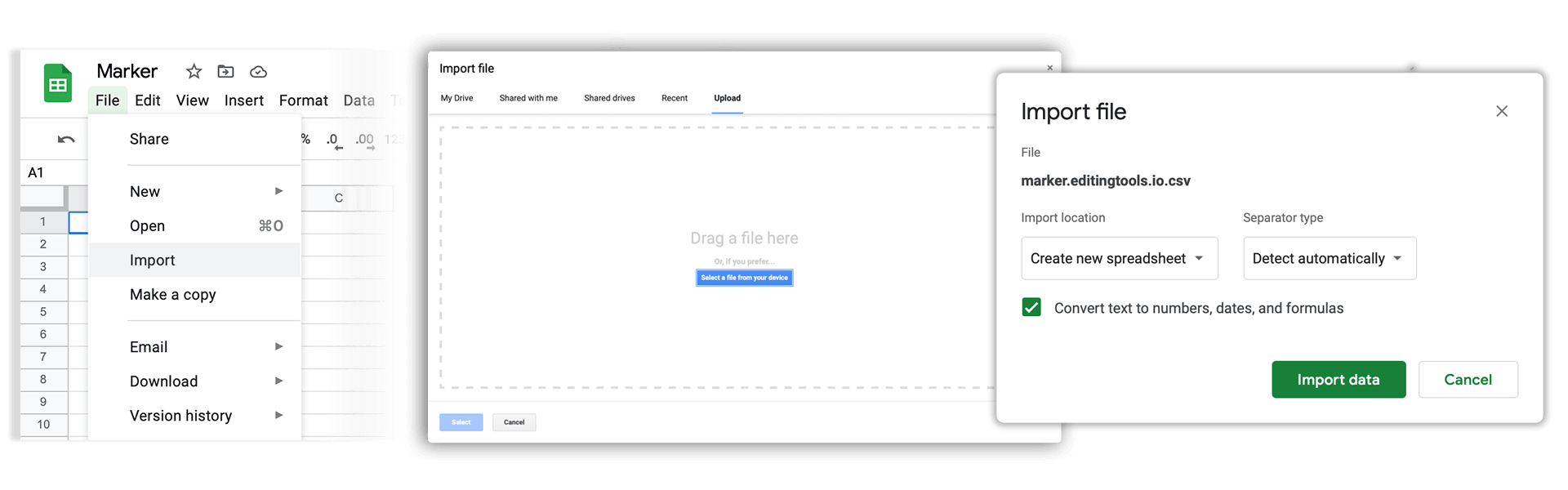
Open Google Sheets and go to "File -> Import". Upload the generated CSV file and press "Import Data" to generate the Sheet with all markers.
🚀 Končano
To je zaenkrat vse! Če se vam je ta vodnik zdel uporaben, ga delite in nas tako podprite. Če imate predloge, kako bi lahko potek dela izboljšali, nam jih sporočite!